Wi-Fi Connected but No Internet? 12 Fixes for 2026
Published: October 17, 2026
Your device can show a strong Wi-Fi signal while every website fails to load. That is possible because Wi-Fi connects your device to a local router; it does not guarantee that the router can reach the wider Internet. This practical guide helps you find the fault without randomly resetting your settings.
Wi-Fi connectivity is not the same as Internet access
Wi-Fi is the local wireless link between a device and its access point. Internet access also relies on the router’s connection to the service provider, working IP configuration and systems such as DNS. Full signal bars only tell you something about the local radio connection; they do not prove that a website is reachable.
Before changing anything, open two unrelated websites in a browser and try another app. One unavailable site or service does not necessarily mean the whole connection is down. Note the exact error and when it first occurred.
Check whether one device or the entire household is affected
Connect a second phone or laptop to the same network. If both devices fail, focus on the router, its upstream connection and shared settings. If only one fails, look at that device’s Wi-Fi profile, VPN, proxy, IP configuration and recent updates.
Try the same website over mobile data. If it works there but not on your home Wi-Fi, you have narrowed the investigation to a different access path, though you have not yet established whether the router or ISP is responsible.
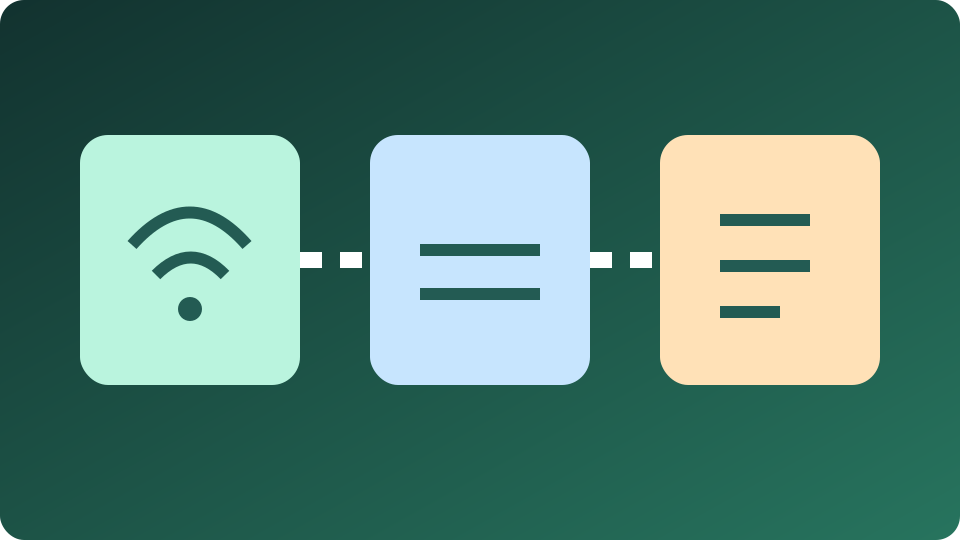
12 fixes in a sensible order
- Check the scope. Try two websites and a second device.
- Toggle airplane mode. Wait a few seconds before reconnecting.
- Move closer to the router. A weak signal may retain the Wi-Fi association while data transfer becomes unreliable.
- Forget and rejoin your network. Make sure you know the Wi-Fi password first.
- Restart the affected device. This can clear a temporary network state.
- Inspect router status lights. An Internet or fibre warning light may signal an upstream problem; consult its manual.
- Restart your modem and router. Follow the manufacturer’s instructions and allow them to reconnect fully.
- Test without a VPN. Only do so when the security requirements of your environment permit it.
- Review proxy settings. An outdated proxy may prevent browsing even when Wi-Fi works.
- Investigate DNS. If IP connections work but domain names fail, name resolution may be involved.
- Check automatic IP settings. An incorrect address or gateway can isolate the device from the Internet.
- Contact your ISP when multiple devices fail. Share the time, router indicators and troubleshooting results.
Change one variable at a time and retest. A complete network or factory reset can erase saved Wi-Fi networks, VPN details and other important configurations, so treat it as a last resort.

Troubleshooting Windows 11
On Windows 11, open Settings → Network & Internet to confirm your connection. Run the built-in network troubleshooter through the Windows Get Help application. Check whether a VPN, manual proxy or custom configuration was enabled recently.
For a more technical check, ipconfig /all displays interface details. An IPv4 address beginning with 169.254 can indicate that the device did not receive its normal DHCP configuration. That observation is useful evidence, not a reason to immediately reset the entire computer.
If everyone in the household is affected, changing a single Windows driver is unlikely to be the best first action. See Microsoft’s official Wi-Fi troubleshooting guide for system-specific steps.
Troubleshooting Android and Samsung Galaxy
On Android phones including Samsung Galaxy, open Settings → Connections → Wi-Fi or Network & Internet, depending on the device. Confirm the selected network and compare the same website on Wi-Fi and mobile data. Move close to the access point to rule out poor coverage.
If only your phone is affected, restart it, check any active VPN and inspect the saved network’s IP and private DNS settings. The precise menu labels vary across Android versions and Samsung software.
Google provides additional instructions in its official Android connectivity troubleshooting guide. Avoid a full device reset until simpler tests have been exhausted.
Understanding DNS, DHCP and VPN issues
DNS translates website names into addresses. Faulty DNS may stop some sites from loading despite otherwise working connectivity. DHCP usually supplies your device with an address, gateway and network configuration. If this process fails, your phone or computer may remain attached to Wi-Fi without a useful route to the Internet.
A VPN or proxy can redirect and filter traffic. Do not remove mandatory security software or managed settings from a work or school device. Ask the administrator for help instead. Record any changes that took place just before the failure.
When the router or ISP connection is at fault
When all devices fail at once, inspect the router’s connection status and your service provider’s outage information. An upstream line incident, disconnected cable, authentication failure or modem issue can all produce the same symptom. In setups with separate modem and router units, follow the manufacturer’s recommended restart sequence.
Do not factory-reset a router without the required settings and a backup. Doing so can remove ISP provisioning, voice service settings or custom networking configurations.
How to verify the connection is working again
Once websites load again, repeat measurements at different times. The PingSivo Internet test can help you observe some speed and latency indicators after connectivity has returned. It does not repair an outage or replace an ISP diagnosis.
For slower or inconsistent connections, read our guides on Wi-Fi versus Ethernet and Internet connection stability. Record the time, device, Wi-Fi network and any interruptions to make comparisons meaningful.
Frequently asked questions
Why does my phone say Wi-Fi connected but no Internet?
The phone may communicate with the router while the upstream connection, DNS or local settings fail. Try another device to narrow down the cause.
Why does mobile data work when Wi-Fi does not?
They use different access paths. That observation helps focus the investigation but does not by itself prove an ISP outage.
Should I change DNS servers?
Not as a first step. Confirm the scope of the issue and whether name resolution is actually failing; a DNS change can otherwise hide the underlying problem.
Should I reset the router?
A simple restart can help. A factory reset is much more disruptive and should only be considered with the needed details and guidance.
Why do only certain websites fail?
A site outage, name resolution problem, proxy, filter or browser-specific fault may be involved. Compare unrelated services before drawing conclusions.
Troubleshooting guidance: exact settings vary by device and network.